
Laravel is an open-source framework that lets you develop web applications and services with PHP. It aims to be a framework that enables elegant, expressive syntax to make writing code simple while avoiding "spaghetti code".
Laravel Forge is a web application provisioning tool that lets you create a website in seconds. With the API for Laravel Forge, we can perform the following actions:
- Cloud instances (Create, restart, modify, delete, etc)
- Control services (MySQL, Nginx, Postgres, etc)
- Manage daemons (Create, list, modify, restart, etc)
- Manage firewall rules
- Manage scheduled tasks
- Manage MySQL databases
- Manage MySQL users
- Register, edit and delete sites
- Load balancing
- Generate and install SSL certificates
- Manage SSH keys
- Manage Workers
- Control Deployment
- Edit configuration files for the different services
- Install GIT repositories
- Install sites with WordPress 1-click
- Manage recipes (Recipes)
Create a server on Clouding
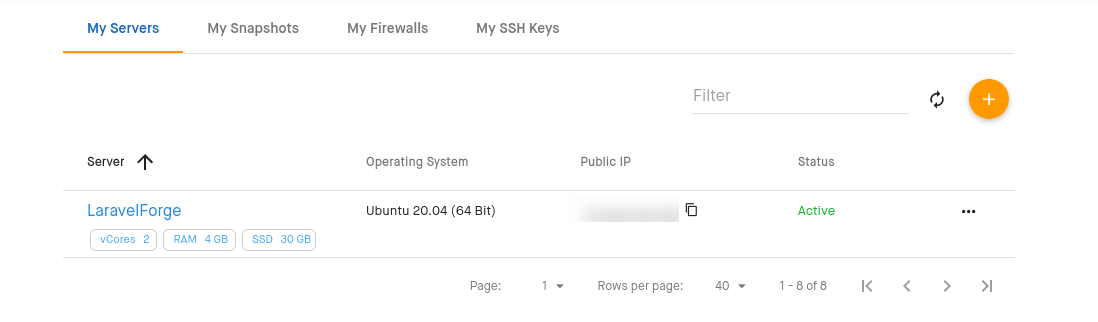
The first thing we need to do is create a new server from the Clouding.io panel. When choosing the image, it is important to select an Ubuntu 20.04 or Ubuntu 18.04 image, as Laravel Forge requires these versions of Ubuntu.
Create a server in Laravel Forge
Log in to your Laravel Forge account. You will see that you can create a new server. Select the Custom VPS:
Fill in the following form with your Clouding server details, specifying the server's IP address. You can also choose the type of server you want to deploy with Laravel Forge, as well as the PHP or MySQL/MariaDB/PostgreSQL version:
Once you click "Create Server", a line will appear that you need to run on your server. You will also be given the new root and database passwords:
Connect via SSH to your Clouding server, for example using Putty, then run the command provided by Laravel Forge, first updating the server's packages:
apt update
apt upgrade -y
wget -O forge.sh "https://forge.laravel.com/servers/333333/vps?forge_token=9PSU5GdFg1cHRURC9KbEmlseEJkMWM5MWEwMCIsInRhZyI6IiJ9&recipe="; bash forge.sh
WARNING
You must run the command shown in your Laravel Forge session; this command is only an example of what you need to run.
A script will now be downloaded and run on your server. The script installs everything needed to manage your Clouding server from Laravel Forge, and depending on the type of server you selected, you will be able to assign certain things to it.
In your Laravel Forge area, you will see the server's status changing and events being logged. Once the entire process finishes on your Clouding server, you will see the different services being configured, followed by a restart.
Once the process finishes, the server will appear as Connected in Laravel Forge:
You can then manage the server from the Laravel Forge panel itself and create databases, Laravel projects, import Git repositories, etc.
Create a new website with Laravel
In your Active Servers list, click your server's name. You will be redirected to a page where you can create your websites or web applications. Fill in the form to create a new website:
Once created, your new website will be added to the Active Sites list.
Click the new website's name to configure the site: add a repository from Git, install WordPress or install PHPmyAdmin:
In this case, we will create a WordPress site for this tutorial. Click WordPress and then select the database you created earlier when creating the website.
If you have not created any databases, you can create a new one under Servers > Databases:
When you select WordPress in the settings for the Site, you can click Install WordPress to start the process:
Finally, after clicking "Install WordPress", within seconds your WordPress will be ready to install on your server: